Category: Gibe Security and Privacy

  • Norton

    Norton

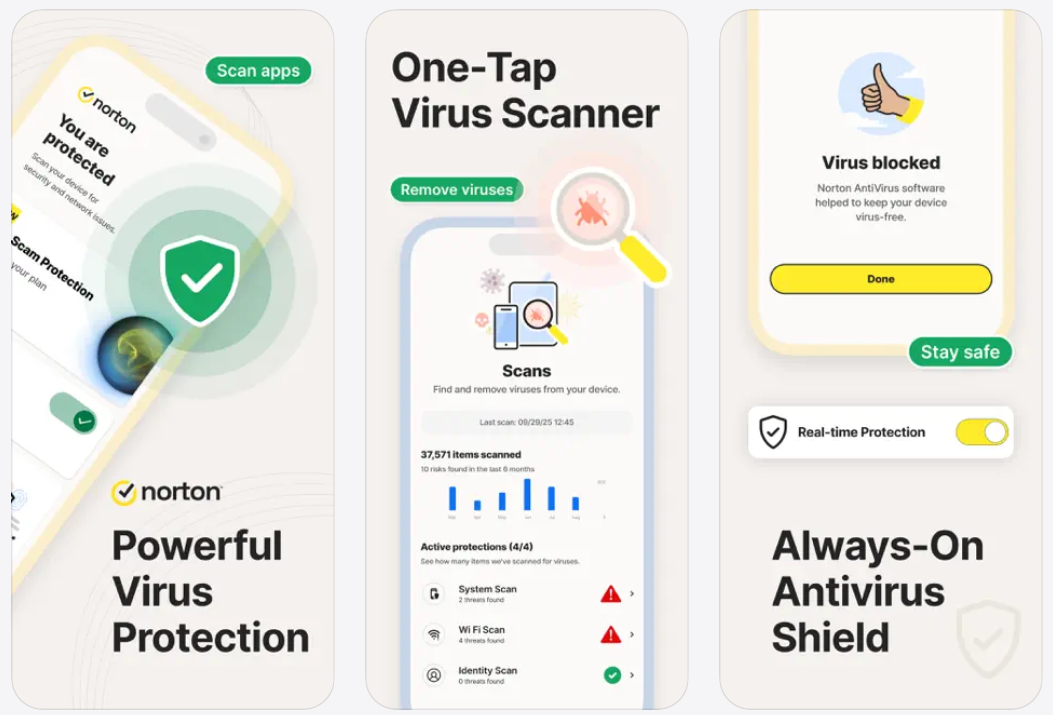
    VRS :-Navigate the web more safely with Norton 360 for iOS.

    Norton 360 ensures robust mobile security, including Al-powered malware protection, and VPN for privacy online. Built-in scam protection helps keep you safe while browsing, shopping, or texting.

    New: Scam Protection Pro

    Al-powered protection against sophisticated scams. Provides holistic coverage across email, web, phone calls, and SMS.

    Norton Genie – Al assistant

    Safe SMS: Al scam protection against spam calls

    Safe Web: Al helps protect you from scams when browsing online.

    Safe Call: Proactively blocks scam and junk calls

    Safe Email: 24/7 Al scam protection for your email inbox

    Device Security: scans for outdated operating systems and missing device passcodes to help you keep your data safer if your device is stolen.

    Norton Genie: Can answer your cyber safety questions, helps you identify scams in messages and in YouTube videos. [3]

    VPN: Help protect your private information with bank-grade encryption for a more secure connection, access to the content you love – wherever you are

    WiFi Security: scan WiFi networks to learn if your device is connected to vulnerable network.

    Safe SMS: filters spam SMS text messages that may contain phishing attacks with Al protection.

    Safe Web: advanced Al helps protect you from scams when browsing online by checking for scams on the pages you visit.

    Ad Tracker Blocker: Helps block ads on different platforms for added privacy & security.

    Dark Web Monitoring: We monitor the dark web and notify you if we find your personal information, security or privacy breaches.[2]

    Subscription details

    Feature availability may vary based on your plan and country.

    An annual subscription is required to activate the 7-day trial (see in-app product pricing).

    Cancel the subscription from your account before the end of the trial to avoid payment.

    After the 7-day trial, your subscription will start and automatically renew annually unless canceled.

    You can manage your subscriptions and adjust automatic renewals in your Apple account settings after purchase.

    The 7-day trial applies to eligible subscription plans and may vary by offer.
  • Phone Tracker

    Phone Tracker

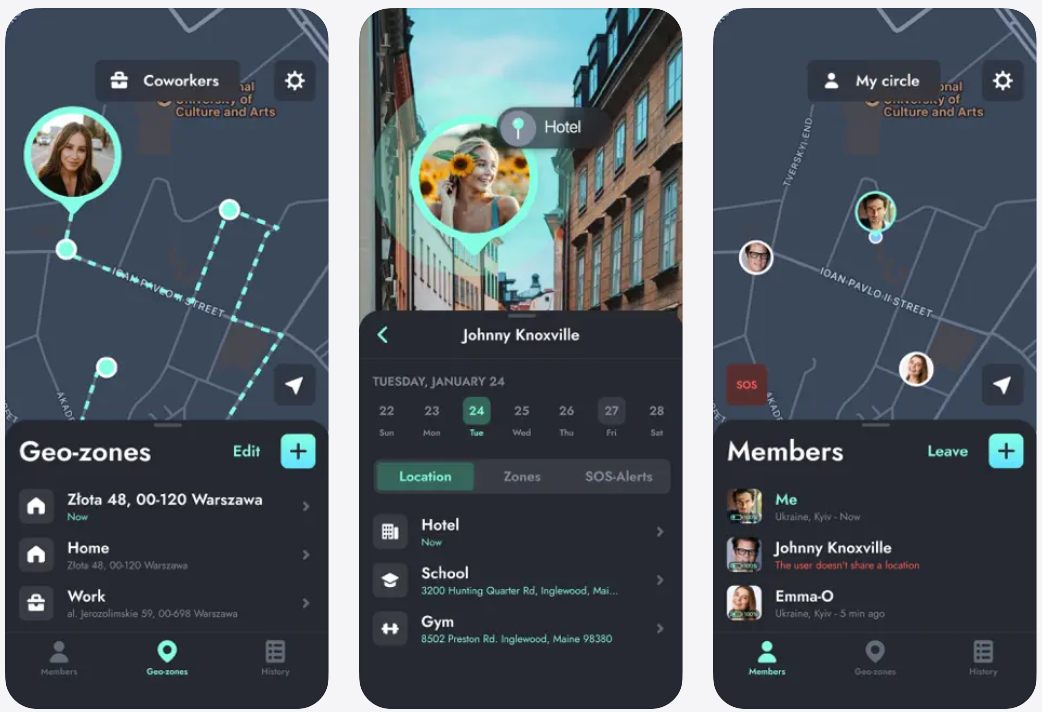
    GPS :-Phone Tracker – Family Locator is an application that uses GPS technology to help you locate and keep track of your family members, friends, and loved ones in real-time on a live, private map. With Circles, you can create a group of people who share their locations within the group, so you can easily track their location history and current location. Invite members by sharing a unique, private 6-digit number, and once they accept the invitation, you can locate them on the map at any time.

    The app also includes geofence zones, which allow you to know when any of your circle members enter or leave a certain area by creating a location-based boundary. You can drop a pin on the map to set the center of the geofence at a specific location, name your geolocation, set the radius for it, and get push notifications when someone enters or exits it. This feature can help you ensure that your loved ones are safe by automatically letting you know their whereabouts, without any effort from them.

    In case of emergencies, the app includes an SOS function that sends an urgent push notification to all members of your circle when you tap on the SOS button, along with a live update of your location. This feature ensures that your child, partner, or friend can alert you any time they need help or are in danger.

    Other features of the app include the ability to view the location history of each circle member, find a lost device using the GPS phone tracker, and manage group circles and geofence zones.

    Phone Tracker is your reliable GPS-based family locator and personal tracking app, designed to help keep your loved ones safe. It is not intended for spying or secret surveillance, and it cannot be installed remotely or without consent.

    To use the service, the user must install the app manually and approve the location-sharing request. By subscribing you can enjoy unlimited alerts, real-time tracking, extended location history and many more features!

  • The Phishing Evolution: Modern Red Flags Every Internet User Should Know.

    The Phishing Evolution: Modern Red Flags Every Internet User Should Know.

    In 2026, the era of the “obvious” scam—the one filled with broken English and suspicious logos—is largely over. Thanks to Large Language Models (LLMs) and Generative AI, phishers can now create “perfect” lures that mimic your boss, your bank, or even your family with terrifying accuracy.

    To stay safe, you need to look beyond the surface. Here are the modern red flags of the “Phishing 2.0” era.


    1. The “Perfect” Voice (AI Cloning)

    Scammers now use as little as 3 seconds of audio from your social media to clone a loved one’s voice. They then call you claiming a “family emergency” or a “legal crisis.”+1

    • The Red Flag: The voice sounds exactly like someone you know, but the emotional cadence is flat, or there are tiny digital artifacts (like subtle robotic echoes or odd pauses).
    • The Defense: Establish a “Family Safe Word” that can’t be found on social media. If they can’t provide the word, hang up.

    2. “Quishing” (QR Code Phishing)

    In 2026, attackers have moved off the screen and into the physical world using malicious QR codes. You might find these on parking meters, restaurant menus, or “urgent” physical mail.

    • The Red Flag: A QR code on a sticker that looks like it was pasted over an original code, or a code that directs you to a website asking for your login credentials immediately.
    • The Defense: Inspect the physical code for tampering. Never use a QR code to “verify” an account; type the official website address into your browser instead.

    3. Hyper-Personalized Spear Phishing

    Old phishing was “spray and pray.” Modern phishing is a “sniper shot.” AI now scrapes your LinkedIn, recent news, and corporate filings to write an email that mentions your specific current projects.

    • The Red Flag: An email from a “colleague” or “CFO” that feels unusually well-informed about your week but asks you to bypass a standard security procedure (like a wire transfer or a password reset).
    • The Defense: Always use an “Out-of-Band” verification. If your boss emails you a strange request, call or text them on their personal number to confirm.

    4. Deepfake Video Calls

    It happened in 2024, and by 2026 it has become a “Scam-as-a-Service.” You might join a Zoom or Teams meeting where multiple “executives” appear on screen, but they are all deepfakes.

    • The Red Flag: Look for visual jitter around the edges of the face, mismatched lip-syncing during rapid speech, or a person who never blinks or turns their head to the side (where AI often “breaks”).
    • The Defense: Ask the person to do something unexpected, like “Turn your head to the left” or “Wave your hand in front of your face.” Most AI models in 2026 still struggle to render these movements in real-time.

    Quick Comparison: Old vs. New Phishing

    FeatureTraditional PhishingModern AI Phishing (2026)
    GrammarPoor, many typos.Flawless, professional tone.
    UrgencyGeneric (“Your account is locked”).Specific (“Your Q3 budget is overdue”).
    MediumMostly Email/SMS.Voice, Video, QR, and AI Chatbots.
    GoalMass credential harvesting.Targeted financial or data theft.

    Pro Tip: In the AI age, skepticism is your strongest firewall. If a digital interaction triggers a “gut feeling” that something is off, it probably is.

  • Digital Invisible Man: How to Audit Your Smartphone’s Privacy Settings in 5 Minutes.

    Digital Invisible Man: How to Audit Your Smartphone’s Privacy Settings in 5 Minutes.

    In 2026, our smartphones aren’t just communication devices; they are high-precision sensors that track our movements, habits, and even the people we stand next to. While manufacturers have added powerful privacy tools, they are often buried under layers of menus.

    Becoming a “Digital Invisible Man” isn’t about disappearing from the grid—it’s about ensuring your phone only shares what you’ve explicitly allowed. Here is your 5-minute privacy audit for 2026.


    Minute 1: The “Who’s Watching?” Check (Permissions)

    The biggest threat to your privacy isn’t a hacker; it’s the weather app that’s tracking your location 24/7.

    • The Audit: Go to Settings > Privacy & Security > Permission Manager (Android) or Privacy & Security (iOS).
    • The Hit List: Focus on Location, Camera, and Microphone.
    • The Action: Set non-essential apps to “Ask Every Time” or “While Using the App.” In 2026, look for the “Approximate Location” toggle—use this for apps like Weather or News so they know your city, but not your street address.

    Minute 2: Silence the “Shoulder Surfers” (Lock Screen)

    In 2026, AI-driven “Shoulder-Surfing” prevention is standard on flagship phones (like the S26 or iPhone 17), but you have to turn it on.

    • The Audit: Go to Settings > Notifications > Lock Screen.
    • The Action: Enable “Sensitive Content Masking.” This hides the text of your messages until the phone recognizes your face via Biometrics.
    • The 2026 Tech: If you have a high-end device, enable “Intelligent Masking” or “Privacy Display.” These use the front camera to detect if someone else is looking at your screen and automatically blurs the content.

    Minute 3: Kill the Data Trail (Activity Controls)

    Google and Apple keep “logs” of your activity to improve AI recommendations, but this is essentially a digital footprint of your life.

    • The Audit: * Android: Settings > Google > Manage Account > Data & Privacy.
      • iOS: Settings > Privacy & Security > Tracking.
    • The Action: Toggle “Allow Apps to Request to Track” to OFF. On Android, set your “Web & App Activity” to Auto-Delete every 3 months. This forces the “Ghost” to clean up after itself.

    Minute 4: The Hardware Kill-Switch (VIP/Lockdown Mode)

    Sometimes you need a “Digital Bunker” for sensitive meetings or travel.

    • The Audit: Search your settings for “Lockdown Mode” (iOS) or “Sensors Off” (Android Developer Options).
    • The Action: Learn the shortcut to activate these. In 2026, many phones feature a “VIP Mode” that logically cuts power to the microphone and camera. Use this when you want 100% certainty that no background app is “listening in.”

    Minute 5: The “Find My” Checkup

    If your phone is stolen, the thief’s first move is to turn off the data.

    • The Audit: Go to Settings > [Your Name] > Find My.
    • The Action: Ensure “Find My Network” and “Send Last Location” are enabled. In 2026, this allows your phone to be tracked even if it’s powered off or has no SIM card, using a mesh network of other nearby devices.

    The 2026 Privacy Shield Checklist

    FeatureRecommended SettingBenefit
    App TrackingDisabledPrevents apps from following you across the web.
    Location“While Using”Stops background tracking and saves battery.
    Clipboard AccessNotifyAlerts you if an app reads what you just copied.
    AI ProcessingOn-Device OnlyKeeps your data out of the provider’s cloud.

    Pro Tip: Set a recurring calendar invite for every 3 months labeled “Digital Oil Change” to run this 5-minute audit again.

  • Beyond “Password123”: A Beginner’s Guide to Using Password Managers Safely.

    Beyond “Password123”: A Beginner’s Guide to Using Password Managers Safely.

    The average person has over 100 digital accounts. Trying to remember a unique, strong password for each is a mathematical impossibility for the human brain. This leads to the most dangerous habit in tech: password reuse. A password manager is your “Digital Vault.” It memorizes everything so you don’t have to, while simultaneously making you nearly impossible to hack. Here is how to set one up safely in 2026.


    1. Choose Your Vault

    Not all managers are created equal. In 2026, the industry is split into three main types:

    • Dedicated Managers (Top Tier): Tools like 1Password, Bitwarden (Open Source), and NordPass offer the highest security features and work across every device (phone, laptop, tablet).
    • Browser-Based: Google Password Manager or Apple Passwords are convenient and free, but they can be less flexible if you switch between a Mac at home and a PC at work.
    • Privacy-First: Services like Proton Pass focus heavily on encryption and keeping your data away from big tech.

    2. The Golden Rule: The “Master Password”

    Since the manager holds all your keys, the “Master Password” used to open the vault is the most important secret you own.

    • Forget “Complexity”: Don’t use Tr0ub4dor&3. It’s hard to remember and easy for a computer to guess.
    • Embrace “Length”: Use a Passphrase. A string of 4–5 random words is statistically harder to crack and easier to remember.
      • Example: correct-horse-battery-staple or blue-elephant-dances-at-midnight.
    • The Emergency Sheet: Write this password down on a physical piece of paper and hide it in a safe place. If you forget this, no one (not even the company) can recover your data.

    3. Enable the “Deadbolt” (MFA)

    Even if someone steals your Master Password, you can stop them with Multi-Factor Authentication (MFA).

    • How it works: After entering your password, the vault asks for a second “key”—usually a code from an app like Google Authenticator or a biometric scan (FaceID/Fingerprint).
    • Pro Tip: For the highest security in 2026, use a physical Security Key (like a YubiKey) that plugs into your USB port.

    4. Let the Manager Work for You

    Once set up, stop making up your own passwords.

    • Generate, Don’t Create: Use the built-in “Generate Password” tool for every new account. It will create gibberish like v9#kL!2pZ*q7, which is perfect because you’ll never have to type it—the manager will Autofill it for you.
    • Audit Your Past: Most managers have a “Security Dashboard” that will flag accounts where you are still using weak or reused passwords. Change one a day until your score is 100%.

    Is it really safe?

    While no system is 100% unhackable, password managers use Zero-Knowledge Encryption. This means your passwords are scrambled before they leave your device. Even if the password manager company is hacked, the thieves only get encrypted “noise” that they can’t read without your Master Password.

    The Verdict: Being in a password manager with a strong Master Password makes you 99% more secure than the average internet user.