Category: Gibe Troubleshooting and Problem Solving

  • The “Blue Screen” Survival Guide: Decoding Error Codes Like a Pro.

    The “Blue Screen” Survival Guide: Decoding Error Codes Like a Pro.

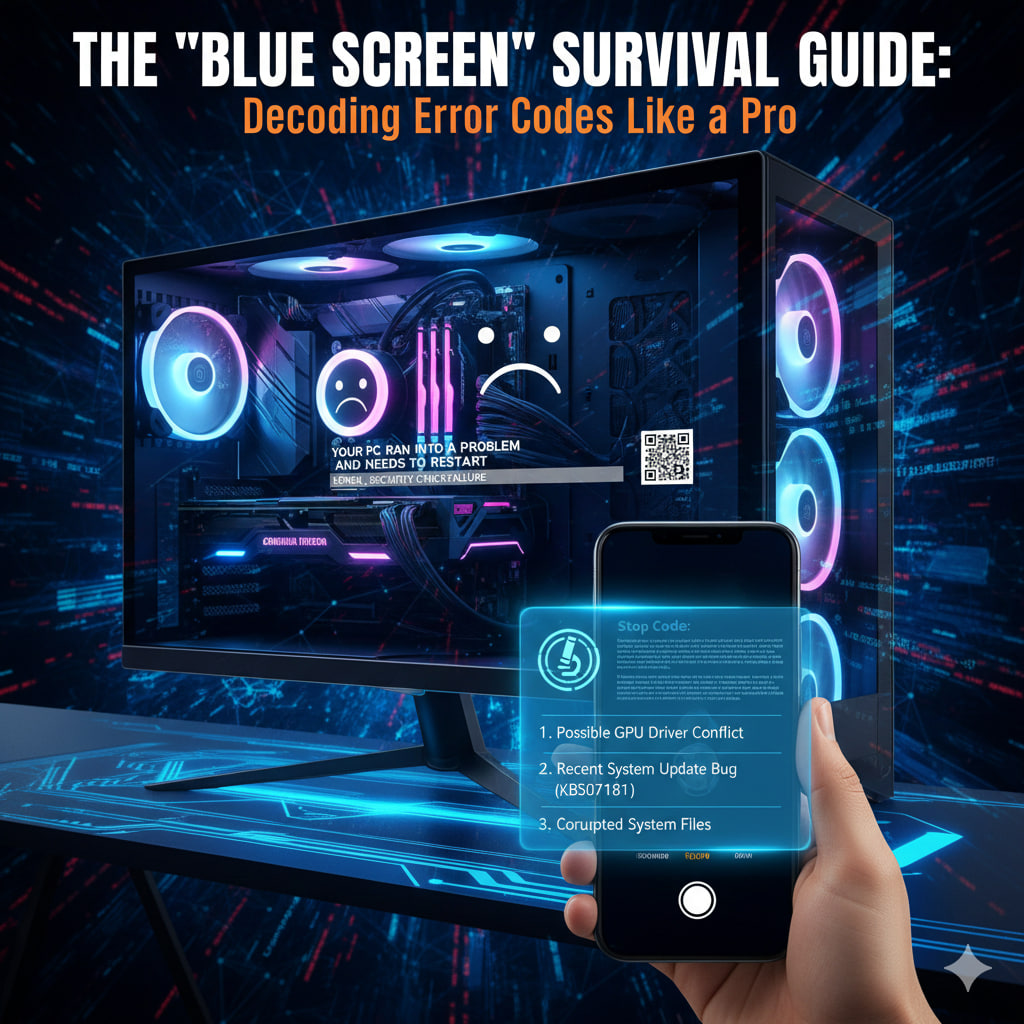
    The “Blue Screen of Death” (BSOD) is arguably the most feared sight in computing. But in 2026, it’s rarely a “death” sentence; it’s actually a protective measure. Windows triggers a BSOD to freeze your system before a critical error can corrupt your data or fry your hardware.

    Think of it as a smoke alarm for your PC. To fix it, you just need to read the label on the alarm. Here is how to decode the most common 2026 error codes and get back to work.


    🔍 The “Big Five” Error Codes

    When the blue screen appears, ignore the sad face and look for the Stop Code (usually in ALL_CAPS at the bottom).

    Stop CodeWhat’s Actually HappeningThe Professional Fix
    CRITICAL_PROCESS_DIEDA vital part of Windows just “quit” the job.Run SFC /scannow in Command Prompt to repair system files.
    MEMORY_MANAGEMENTYour RAM is confused or physically failing.Run the Windows Memory Diagnostic tool (mdsched.exe).
    IRQL_NOT_LESS_OR_EQUALA driver tried to access memory it wasn’t allowed to.Roll back or update your most recent Network or GPU driver.
    INACCESSIBLE_BOOT_DEVICEWindows can’t find your hard drive anymore.Check your SSD cable or reset BIOS/UEFI to default settings.
    KERNEL_SECURITY_CHECK_FAILUREThe “brain” of the PC detected data corruption.Common in Feb 2026 due to GPU bugs; Update Windows to KB5077181.

    🛠️ The 3-Step Triage Process

    If you are seeing blue screens frequently, follow this professional diagnostic path:

    1. The “Ghost in the Machine” (Hardware)

    Unplug everything except your mouse and keyboard. If the BSOD stops, one of your peripherals (webcam, external drive, or even a USB hub) has a faulty driver or a short circuit. Re-plug them one by one until the “ghost” returns.

    2. The “Safe Haven” (Safe Mode)

    If your PC crashes before you can even log in, force it into Safe Mode.

    • How: Power on, then hold the power button to force a shutdown as soon as the Windows logo appears. Repeat this 3 times. On the 4th attempt, Windows will enter the Recovery Environment.
    • Why: Safe Mode loads only the bare essentials. If the blue screen doesn’t happen here, the problem is a software app or a 3rd-party driver you installed recently.

    3. The “Digital Surgeon” (SFC & DISM)

    If Windows feels “unstable,” use the built-in repair tools. Open Command Prompt as Administrator and run:

    1. sfc /scannow (Checks for basic file errors).
    2. DISM /Online /Cleanup-Image /RestoreHealth (Downloads fresh system files from Microsoft to replace broken ones).

    🚨 2026 Special Alert: The “Update” Bug

    As of February 2026, some users are reporting BSODs specifically after installing cumulative update KB5077181.

    • The Symptom: Random “System Hangs” or “Audio Glitches” followed by a crash.
    • The Fix: If your issues started this week, go to Settings > Windows Update > Update History > Uninstall Updates and remove the most recent February patch until a hotfix is released.

    Pro Tip: Take a photo of the BSOD with your phone. Many screens in 2026 include a QR Code that takes you directly to a Microsoft support page specific to your exact error.
  • Wi-Fi Woes: How to Diagnose Dead Zones and Network Lag Without an IT Degree.

    Wi-Fi Woes: How to Diagnose Dead Zones and Network Lag Without an IT Degree.

    In 2026, a stable internet connection is as vital as electricity. Yet, many of us still treat our Wi-Fi routers like magical boxes—tucked away in cabinets or hidden behind couches—and then wonder why our Zoom calls freeze.

    You don’t need a degree in network engineering to fix this. You just need to understand the three pillars of wireless performance: Obstacles, Interference, and Hardware.


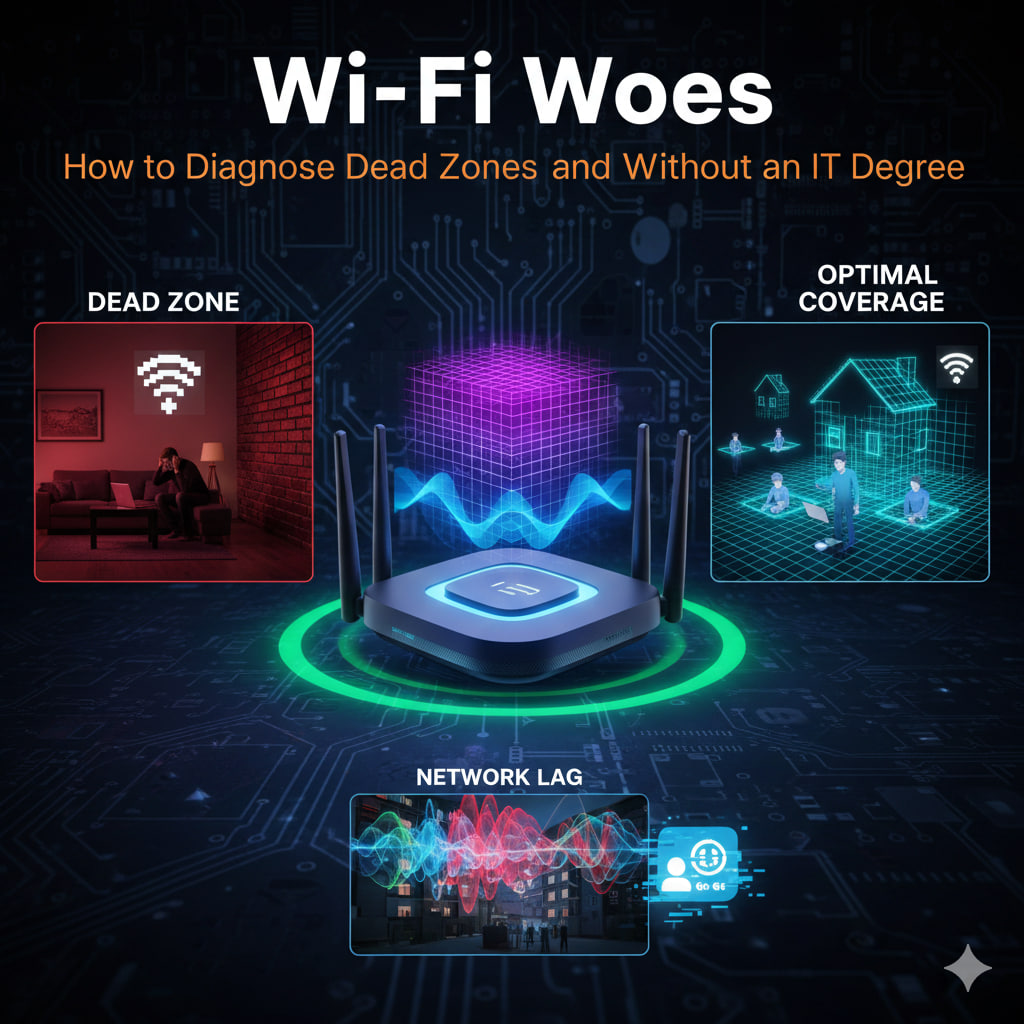
    1. Map Your “Radio Shadows”

    Wi-Fi signals are high-frequency radio waves. Like light, they struggle to pass through solid objects.

    • The Culprits: Brick walls, mirrors (which reflect signals), and large appliances (like refrigerators) act as “shadow-makers,” creating dead zones behind them.
    • The DIY Audit: Walk through your home with your phone. Look at the Wi-Fi “bars” or use a free Wi-Fi Analyzer app. Note where the signal drops from 4 bars to 2. That is your shadow line.
    • The Fix: Move your router to a central, elevated location. Every foot of height helps the signal “clear” the furniture that would otherwise absorb it.

    2. The 2.4GHz vs. 5GHz (and 6GHz) Dilemma

    In 2026, most routers are “Tri-Band.” Each band has a different job:

    • 2.4 GHz: Long range, but slow. This band is crowded by microwaves, baby monitors, and old Bluetooth devices.+1
    • 5 GHz / 6 GHz: Extremely fast, but short range. These bands can’t penetrate walls well.
    • The Red Flag: If your laptop is in the same room as the router but is stuck on the 2.4 GHz band, it will feel sluggish.
    • The Fix: Go into your router settings and ensure “Band Steering” is enabled. This automatically pushes your high-performance devices (laptops, TVs) onto the faster 5/6 GHz lanes while leaving smart bulbs on the 2.4 GHz lane.

    3. Diagnose the “Neighbor Noise” (Interference)

    If you live in an apartment or a dense neighborhood, your neighbor’s Wi-Fi is likely screaming over yours.

    • The Concept: Think of it like a crowded restaurant. If everyone is talking on the same “channel,” no one can be heard.
    • The Audit: Use a Wi-Fi scanner to see which channels are most crowded.
    • The Fix: Most modern routers have an “Auto-Optimize” or “Channel Scan” button in their app. This forces the router to “listen” for a quiet frequency and move your network there.

    4. When to Stop Troubleshooting and Upgrade

    Sometimes, the hardware simply isn’t up to the task.

    • The “One-Router” Limit: If your home is larger than 1,500 square feet, a single router will struggle.
    • The Solution: Switch to a Mesh System (like Eero, Nest, or ASUS ZenWiFi). Unlike “extenders” (which just repeat a weak signal), Mesh nodes work together to create a single, seamless blanket of coverage across the entire house.

    Wi-Fi Troubleshooting Cheat Sheet

    SymptomLikely CauseFirst Step
    “Dead Zone” in one roomPhysical ObstructionMove router or add a Mesh node.
    Full bars, but slow speedNetwork CongestionRestart router to clear the cache.
    Connection drops randomlyInterferenceChange the “Channel” in settings.
    Slow only in the eveningsISP Throttling/CongestionRun a wired speed test to confirm.

    Pro Tip: If your router has antennas, don’t point them both straight up. Aim one vertically and one horizontally. This helps the signal reach devices regardless of how their internal antennas are oriented.

  • Why It’s Not Working: A Universal Checklist for Fixing Any Tech Issue.

    Why It’s Not Working: A Universal Checklist for Fixing Any Tech Issue.

    By 2026, technology has become more “integrated,” but that also means when one thing breaks, it often triggers a domino effect. Whether it’s a smart home hub, a VR headset, or a simple laptop, most tech issues stem from a handful of common failure points.

    Before you call tech support or give up in frustration, use this Universal Checklist. It is designed to move from the simplest (and most likely) fixes to more complex diagnostics.


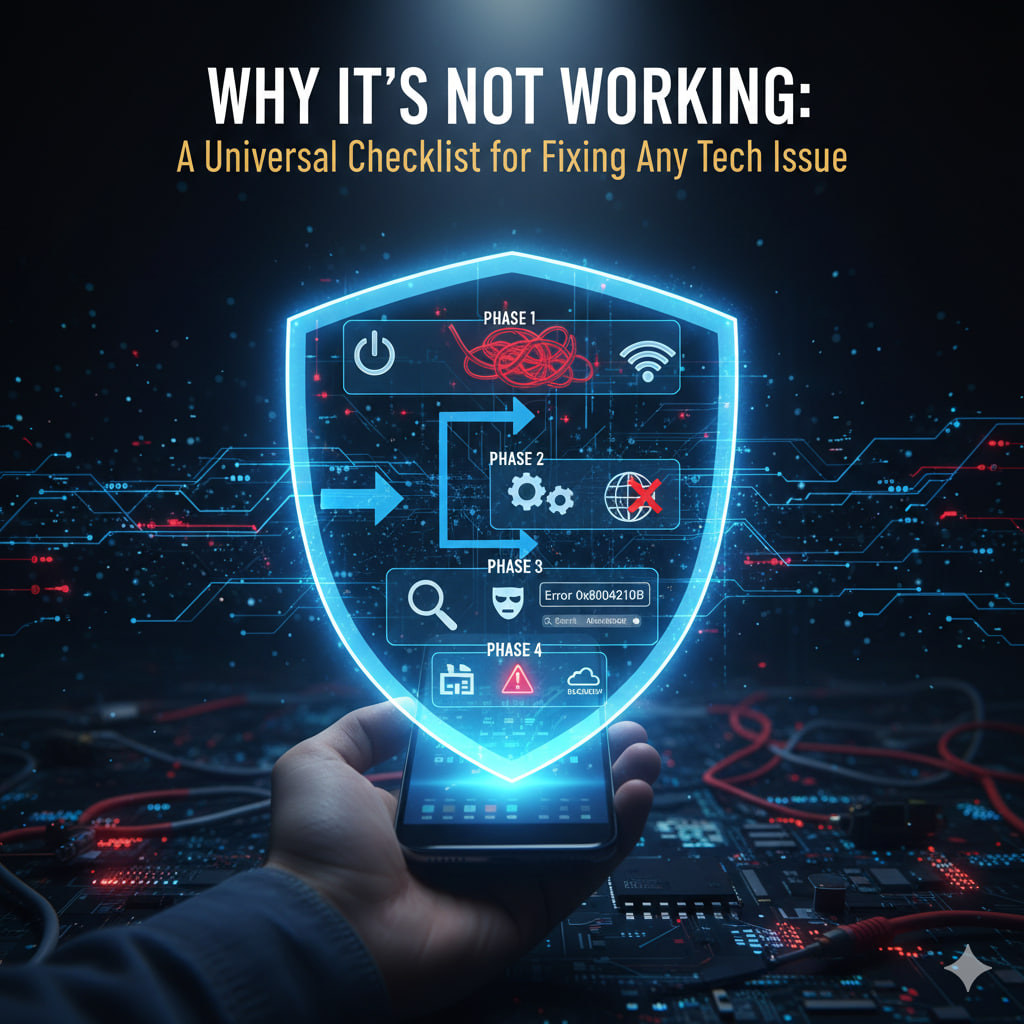
    Phase 1: The “Lucky Break” Fixes (0–2 Minutes)

    Statistically, 90% of tech problems are solved in this phase.

    • The “Power Cycle” (Reboot): It’s a cliché for a reason. Restarting clears the RAM and kills “zombie” processes that are stuck in a loop.
    • The Physical Audit: Check every cable and connection. In 2026, wireless interference is also a “physical” issue—is your device too far from the router, or is a large metal object/appliance blocking the signal?
    • Check the Power Source: Is it actually charging? A loose USB-C cable or a dead power strip is often the “invisible” culprit.

    Phase 2: The Environment Check (2–5 Minutes)

    If the hardware is on but the software is failing, check the external factors.

    • The Update Check: We are in an era of “Continuous Deployment.” If your app version is even 24 hours out of date, it may be incompatible with the server. Check for OS and App updates immediately.
    • The “Is It Just Me?” Test: Use a site like DownDetector. If the service’s servers are down, no amount of troubleshooting on your end will fix it.
    • Connectivity Toggle: Turn Airplane Mode ON for 10 seconds, then OFF. This forces the device to re-handshake with Wi-Fi and Cellular towers.

    Phase 3: Isolation & Diagnostics (5–15 Minutes)

    This is where you play “Digital Detective” to find the root cause.

    • The “Divide and Conquer” Rule: If a website isn’t loading, try a different browser. If a peripheral isn’t working, try a different port. This tells you if the problem is the Source (the device) or the Path (the cable/app).
    • Safe Mode: Booting in “Safe Mode” (or “Incognito” for browsers) disables third-party extensions and custom settings. If the problem disappears here, a recently installed app or extension is the villain.
    • Read the Error Code: Don’t ignore the gibberish like Error 0x8004210B. Search for that specific code + your device model. In 2026, AI search engines can give you a plain-English solution for these codes in seconds.

    Phase 4: The “Nuclear” Options

    When all else fails, you must revert to a known working state.

    • Reset Network Settings: This wipes your saved Wi-Fi passwords and Bluetooth pairings, but it fixes almost all deep-seated connectivity bugs.
    • System Restore: If your device worked yesterday but doesn’t today, use a “Restore Point” to roll back the clock.
    • The Factory Reset: The final resort. This wipes the device clean. Warning: Always ensure your Cloud Backup (Phase 3 of our “Maintenance” category) is 100% complete before doing this.

    The Troubleshooter’s Quick-Reference

    If the Symptom is…Start Here:
    Device is “Frozen”Force Restart (Hold Power + Volume/Home)
    App Keeps CrashingClear Cache & Check for Updates
    Internet is SlowRestart Router & Move Closer
    Battery Draining FastCheck “Battery Usage” for Background Hogs
    Strange NoisesCheck for Dust/Blocked Vents (Overheating)

    Pro Tip: If you have to call support, tell them exactly which steps of this checklist you’ve already completed. It saves you 20 minutes of being asked “Did you try turning it off and on again?”