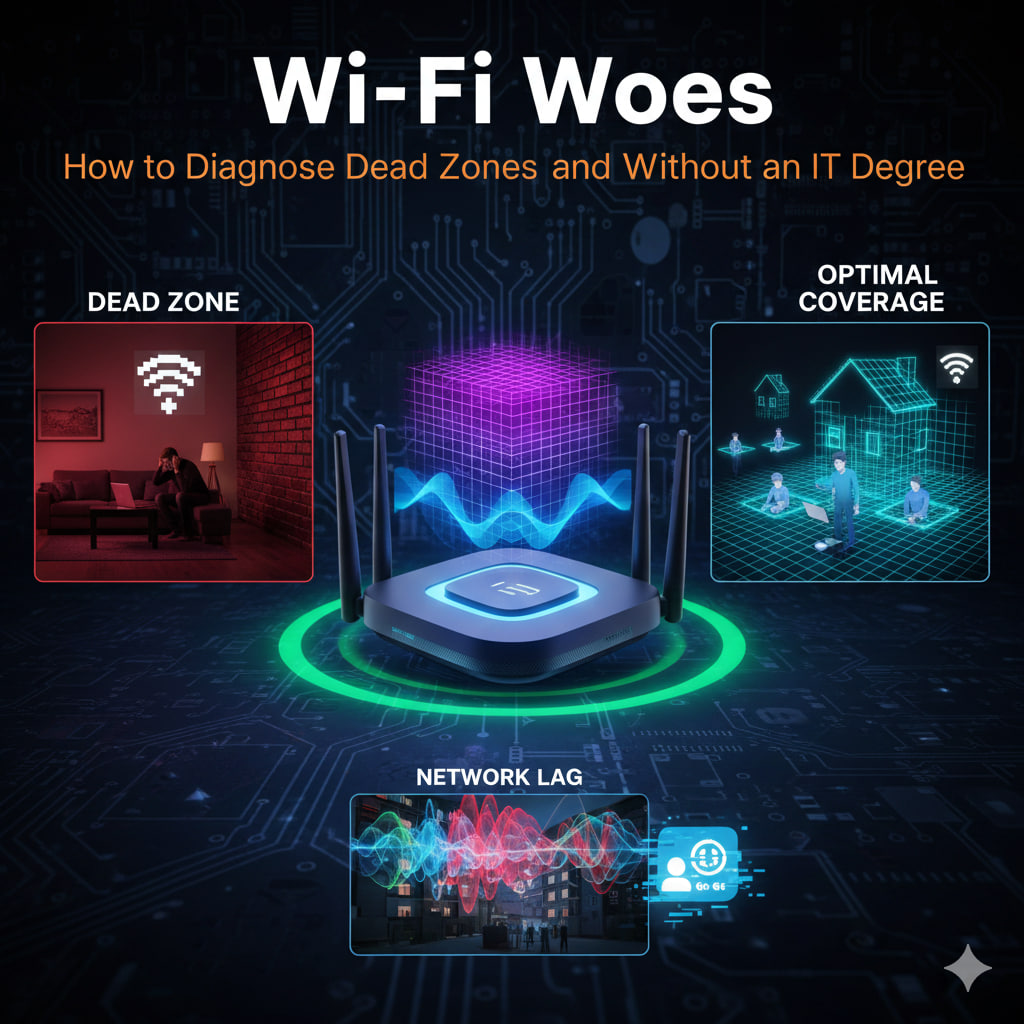
In 2026, a stable internet connection is as vital as electricity. Yet, many of us still treat our Wi-Fi routers like magical boxes—tucked away in cabinets or hidden behind couches—and then wonder why our Zoom calls freeze.
You don’t need a degree in network engineering to fix this. You just need to understand the three pillars of wireless performance: Obstacles, Interference, and Hardware.
1. Map Your “Radio Shadows”
Wi-Fi signals are high-frequency radio waves. Like light, they struggle to pass through solid objects.
- The Culprits: Brick walls, mirrors (which reflect signals), and large appliances (like refrigerators) act as “shadow-makers,” creating dead zones behind them.
- The DIY Audit: Walk through your home with your phone. Look at the Wi-Fi “bars” or use a free Wi-Fi Analyzer app. Note where the signal drops from 4 bars to 2. That is your shadow line.
- The Fix: Move your router to a central, elevated location. Every foot of height helps the signal “clear” the furniture that would otherwise absorb it.
2. The 2.4GHz vs. 5GHz (and 6GHz) Dilemma
In 2026, most routers are “Tri-Band.” Each band has a different job:
- 2.4 GHz: Long range, but slow. This band is crowded by microwaves, baby monitors, and old Bluetooth devices.+1
- 5 GHz / 6 GHz: Extremely fast, but short range. These bands can’t penetrate walls well.
- The Red Flag: If your laptop is in the same room as the router but is stuck on the 2.4 GHz band, it will feel sluggish.
- The Fix: Go into your router settings and ensure “Band Steering” is enabled. This automatically pushes your high-performance devices (laptops, TVs) onto the faster 5/6 GHz lanes while leaving smart bulbs on the 2.4 GHz lane.
3. Diagnose the “Neighbor Noise” (Interference)
If you live in an apartment or a dense neighborhood, your neighbor’s Wi-Fi is likely screaming over yours.
- The Concept: Think of it like a crowded restaurant. If everyone is talking on the same “channel,” no one can be heard.
- The Audit: Use a Wi-Fi scanner to see which channels are most crowded.
- The Fix: Most modern routers have an “Auto-Optimize” or “Channel Scan” button in their app. This forces the router to “listen” for a quiet frequency and move your network there.
4. When to Stop Troubleshooting and Upgrade
Sometimes, the hardware simply isn’t up to the task.
- The “One-Router” Limit: If your home is larger than 1,500 square feet, a single router will struggle.
- The Solution: Switch to a Mesh System (like Eero, Nest, or ASUS ZenWiFi). Unlike “extenders” (which just repeat a weak signal), Mesh nodes work together to create a single, seamless blanket of coverage across the entire house.
Wi-Fi Troubleshooting Cheat Sheet
| Symptom | Likely Cause | First Step |
| “Dead Zone” in one room | Physical Obstruction | Move router or add a Mesh node. |
| Full bars, but slow speed | Network Congestion | Restart router to clear the cache. |
| Connection drops randomly | Interference | Change the “Channel” in settings. |
| Slow only in the evenings | ISP Throttling/Congestion | Run a wired speed test to confirm. |
Pro Tip: If your router has antennas, don’t point them both straight up. Aim one vertically and one horizontally. This helps the signal reach devices regardless of how their internal antennas are oriented.
Leave a Reply