
Category: Gibe Maintenance and Performance

  • Spring Cleaning for Pixels: A Step-by-Step Guide to Organizing Your Cloud Storage.

    Spring Cleaning for Pixels: A Step-by-Step Guide to Organizing Your Cloud Storage.

    By 2026, the “infinite” storage we were promised a decade ago has become a costly subscription trap. Most of us are paying for “storage tiers” we don’t actually need, simply because our digital lives are cluttered with duplicate photos, 4K video clips we’ll never watch, and forgotten PDF downloads.

    Organizing your cloud isn’t just about aesthetics; it’s about reclaiming your monthly budget. Here is your step-by-step guide to a leaner, faster digital vault.


    Step 1: The “Heavy Lifter” Audit

    Storage is usually eaten by a small number of very large files.

    • The Action: Sort your cloud drive (Google Drive, OneDrive, iCloud) by “File Size” rather than date.
    • The Target: Look for screen recordings, unedited video projects, or ISO disk images. In 2026, AI-generated video files are the new storage hogs—if you’ve been experimenting with video generation, these “test” clips are likely sitting in your trash or “Downloads” folder, still counting against your quota.

    Step 2: Kill the “Burst” and the “Blur”

    Our photo libraries are often 30% “accidental” content.

    • The Action: Use your phone’s built-in “Duplicates” folder (iOS/Android).
    • The Target: Delete bursts where you only need one shot, blurry photos, and screenshots of things you’ve already bought or addressed.
    • The 2026 Tech: Use your OS’s “AI Cleanup” feature. Modern gallery apps can now group “Similar Images” and suggest the best one to keep, allowing you to delete hundreds of near-identical photos in a single tap.

    Step 3: The “Archive vs. Active” Philosophy

    Stop treating your Cloud Drive like a junk drawer.

    • The Action: Create a folder named “Archive [Year]”.
    • The Target: Move any project, tax document, or folder you haven’t touched in 6 months into this folder.
    • The Result: This keeps your “Active” view clean, reducing the cognitive load when you’re looking for something urgent. Once a year, you can move the entire Archive folder to an inexpensive physical SSD to free up cloud space entirely.

    Step 4: The “Zombie” Subscription Check

    Many of us pay for multiple cloud services without realizing it.

    • The Audit: Check your subscriptions for Google One, iCloud+, Microsoft 365, and Dropbox.
    • The Action: Consolidate. If you use Microsoft Word for work, you likely already have 1TB of OneDrive storage included. There is no reason to pay for a 2TB Google One plan as well. Pick one “home” for your data and migrate the rest.

    Cloud Efficiency Checklist

    TaskFrequencyStorage Reclaimed (Avg)
    Empty “Trash” & “Spam”Weekly500 MB
    Delete Large Video AttachmentsMonthly5 GB+
    Consolidate Duplicate PhotosQuarterly2 GB+
    Offload “Archive” to Physical DriveYearly50 GB+

    Pro Tip: In 2026, most cloud providers offer a “Storage Map” visualizer. Before you delete anything, look at the graph to see if your space is being taken by Mail, Photos, or Drive. Don’t waste time deleting tiny emails if your “Photos” are taking up 90% of the space.
  • Battery Longevity 101: Why Everything You Know About Charging Is Probably Wrong.

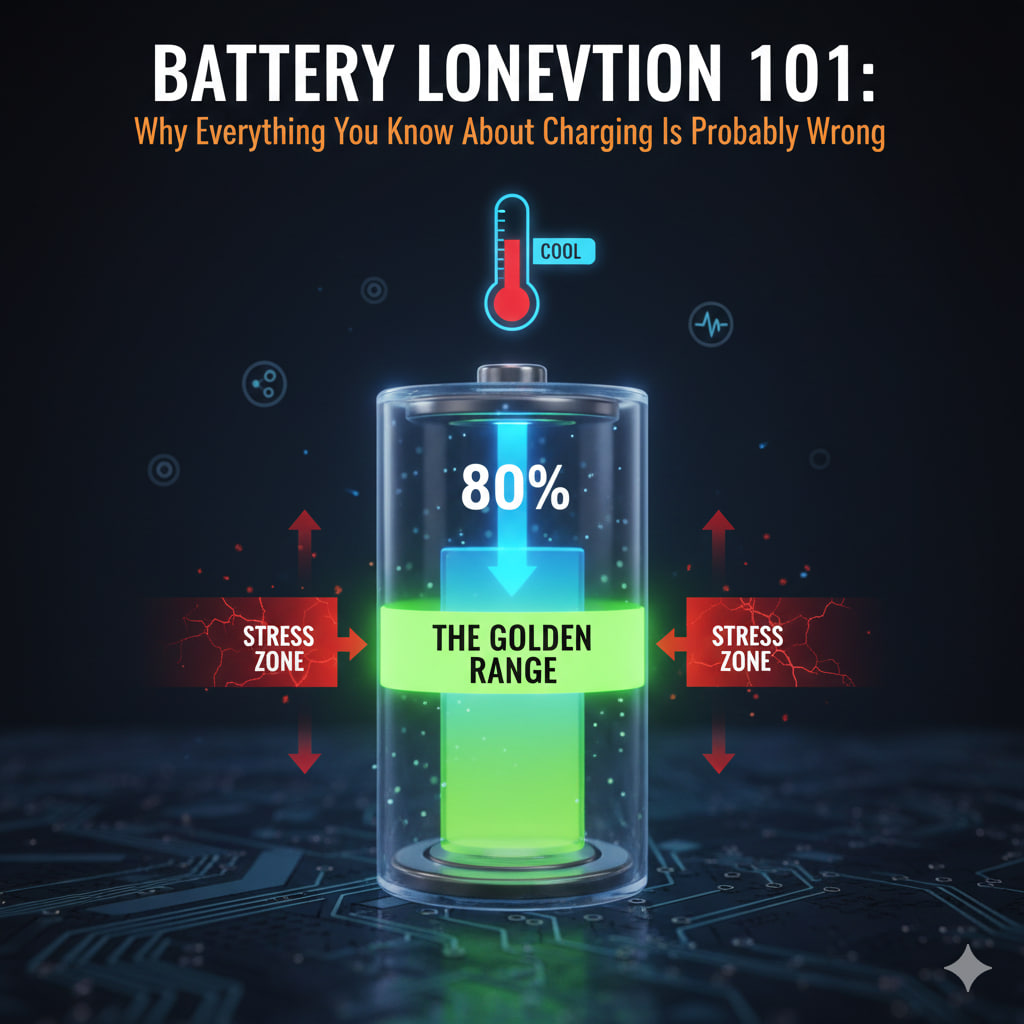
    Battery Longevity 101: Why Everything You Know About Charging Is Probably Wrong.

    For years, we’ve been treated to a library of “battery myths” born from the era of old nickel-based batteries. But it’s 2026, and the Lithium-Ion (Li-ion) and Lithium-Polymer (Li-Po) cells in your smartphone, laptop, and EV operate on entirely different physics.

    If you’re still draining your phone to 0% or leaving it plugged in all night without the right settings, you are actively killing your device’s lifespan. Here is the modern science of battery health.


    1. The “Golden Range”: The 20-80 Rule

    The biggest misconception is that batteries like to be “full.” In reality, Lithium-ion batteries are under the most physical stress when they are at 100% or 0%. Think of it like a rubber band: it’s most comfortable when it’s relaxed in the middle, not stretched to its limit.

    • The Science: Charging to 100% increases the “voltage stress” on the battery chemistry.
    • The Fix: Try to keep your battery between 20% and 80%. In 2026, most OS settings (iOS, Android, Windows) have a “Limit Charge to 80%” toggle. Enable it. This can nearly double the number of charge cycles your battery can survive.

    2. Heat is the “Silent Killer”

    Fast charging is convenient, but it generates immense heat. Heat causes the internal structure of the battery to degrade.+1

    • The Red Flag: Using your phone for gaming or high-intensity video editing while it’s on a fast charger.
    • The Fix: If your phone feels hot to the touch, unplug it. Avoid cheap, off-brand “super chargers” that don’t have proper thermal regulation. Slow charging overnight is actually better for longevity than blasting it with 100W of power.+1

    3. The “Full Cycle” Myth

    You do not need to “calibrate” modern batteries by draining them to 0%. In fact, deep discharges are the fastest way to cause permanent capacity loss.

    • The Science: Modern batteries count a “cycle” as a total of 100% discharge, regardless of how many sessions it takes. (Charging from 50% to 100% twice equals one cycle).
    • The Fix: Charge in “snacks,” not “meals.” Frequent, short top-ups are much better for the chemistry than one long, heat-inducing charge from empty to full.

    4. Storage Secrets

    If you’re going to leave a laptop or an old phone in a drawer for a few months, don’t leave it at 100% or 0%.

    • The Fix: Power it down at roughly 50%. A battery stored at 0% can fall into a “deep discharge state” where it may never hold a charge again.

    Battery Health Checkup (Where to find it)

    DevicePath to SettingsFeature to Enable
    iPhoneSettings > Battery > Battery HealthOptimized Battery Charging
    AndroidSettings > Battery > Battery ProtectLimit to 80%
    MacBookSystem Settings > BatteryOptimized Charging
    WindowsSurface/Laptop App (Manufacturer specific)Smart Charging / Battery Limit

    The Bottom Line

    In 2026, a well-treated battery should last 4–6 years before noticing significant degradation. A mistreated one will begin to fail in 18 months. By avoiding the “extremes” (0% and 100%) and keeping it cool, you’re saving yourself hundreds of dollars in replacement costs.

    Key Takeaway: 80% is the new 100%.


  • The Silent Slowdown: How to Manage Startup Apps and Reclaim Your RAM.

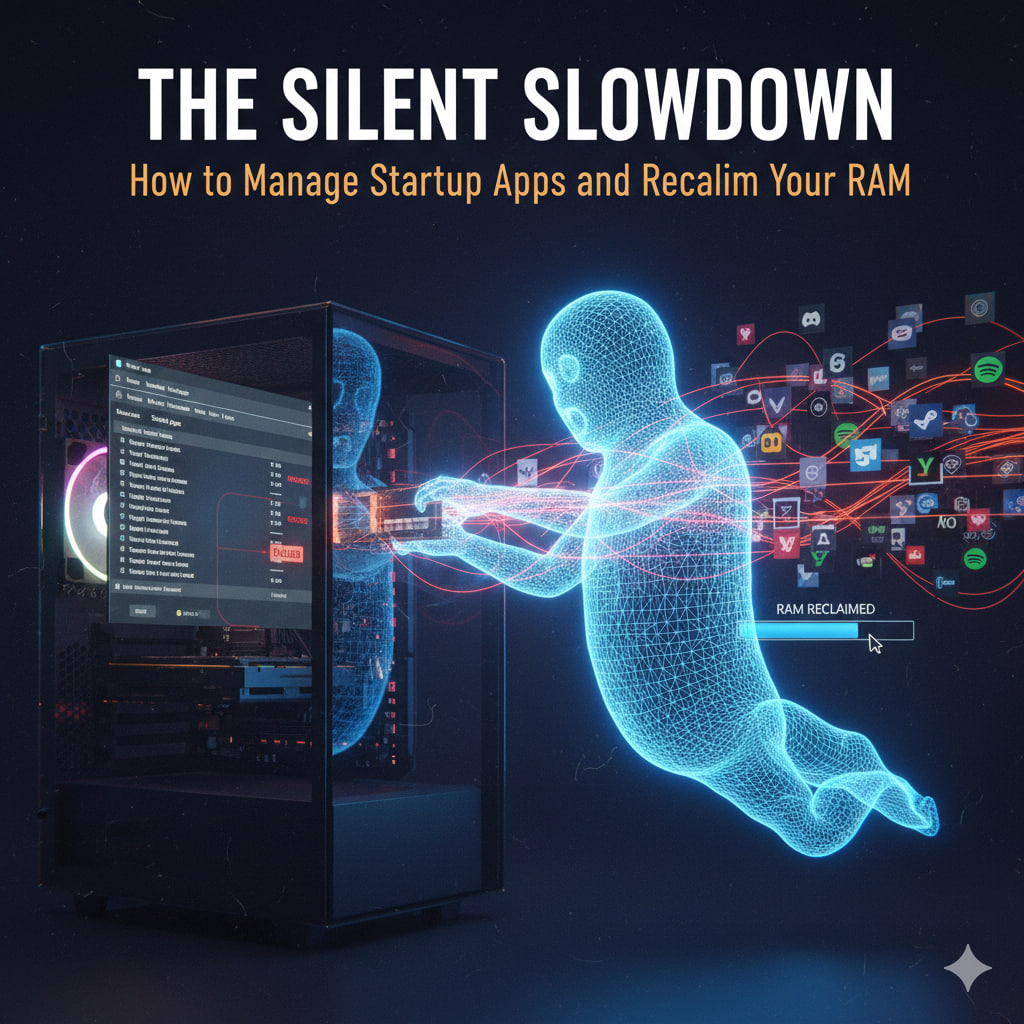
    The Silent Slowdown: How to Manage Startup Apps and Reclaim Your RAM.

    In 2026, even the most powerful machines can feel sluggish. The culprit isn’t usually a virus; it’s “Software Bloat”—a collection of apps that grant themselves permission to start the moment you log in. These “silent” background processes eat into your RAM (Random Access Memory), leaving less room for the apps you are actually trying to use.

    Reclaiming your RAM is the single most effective “free” upgrade you can give your computer. Here is how to do it in 2026.


    1. The 2026 “Startup Audit”

    Not every app needs to be ready at a moment’s notice. You need to distinguish between Core Utilities and Resource Hogs.

    • Keep Enabled: Security software (Antivirus), Cloud Sync (if you save files constantly), and hardware drivers (audio/mouse software).
    • Disable: Game launchers (Steam, Epic), Communication apps (Teams, Discord, Slack), and “Update Helpers” for software you rarely use.

    2. How to Reclaim Control (Windows & Mac)

    The methods have evolved to be more user-friendly, but the “Pro” tools remain the most effective.

    For Windows 11/12 Users:

    • The Quick Way: Press Ctrl + Shift + Esc to open Task Manager. Navigate to the Startup Apps tab. Look at the “Startup Impact” column—anything labeled “High” is your primary target. Right-click and select Disable.
    • The Deep Clean: Open Settings > Apps > Startup. This menu provides a cleaner interface and toggle switches to manage background behavior.
    • The Secret RAM Eater: Disable SysMain (formerly Superfetch). This service preloads apps into RAM that you might never use. Search for “Services,” find SysMain, right-click, select Properties, and set “Startup type” to Disabled.

    For macOS Users:

    • The Standard Way: Go to System Settings > General > Login Items. Under “Open at Login,” select an app and click the minus (-) button to remove it.
    • The “Background” Audit: Below the login items, look at “Allow in the Background.” This is where apps like Adobe or Google Chrome hide “updaters” that run even if the app is closed. Toggle off anything non-essential.
    • The Force Purge: If your Mac feels stuck, open Terminal and type sudo purge. This flushes the inactive memory and forces the OS to reallocate RAM to your active windows.

    3. The “Ghost Process” Cleanup

    Some apps don’t appear in the standard startup lists.

    • Browser Extensions: Each Chrome or Edge extension is its own background process. Go to chrome://extensions and remove anything you haven’t used in a month.
    • The “Zombie” Tab: In 2026, most browsers have “Memory Saver” mode. Ensure this is ON to “freeze” tabs you aren’t looking at, instantly freeing up gigabytes of RAM.

    Performance Impact Cheat Sheet

    ActionRAM Reclaimed (Est.)Impact on Speed
    Disable High-Impact Startup Apps500MB – 1.5GB⚡⚡⚡ (Faster Boot)
    Enable Browser Memory Saver1GB – 3GB⚡⚡⚡ (Less Lag)
    Disable SysMain / Background Tasks200MB – 600MB⚡ (Steady Performance)
    Clear Clipboard & Temp Files100MB – 300MB⚡ (System Stability)

    Pro Tip: Aim to keep at least 20% of your RAM free at all times. When RAM usage hits 90%+, your computer begins using your much slower hard drive as “Virtual Memory,” which is the primary cause of system freezes.