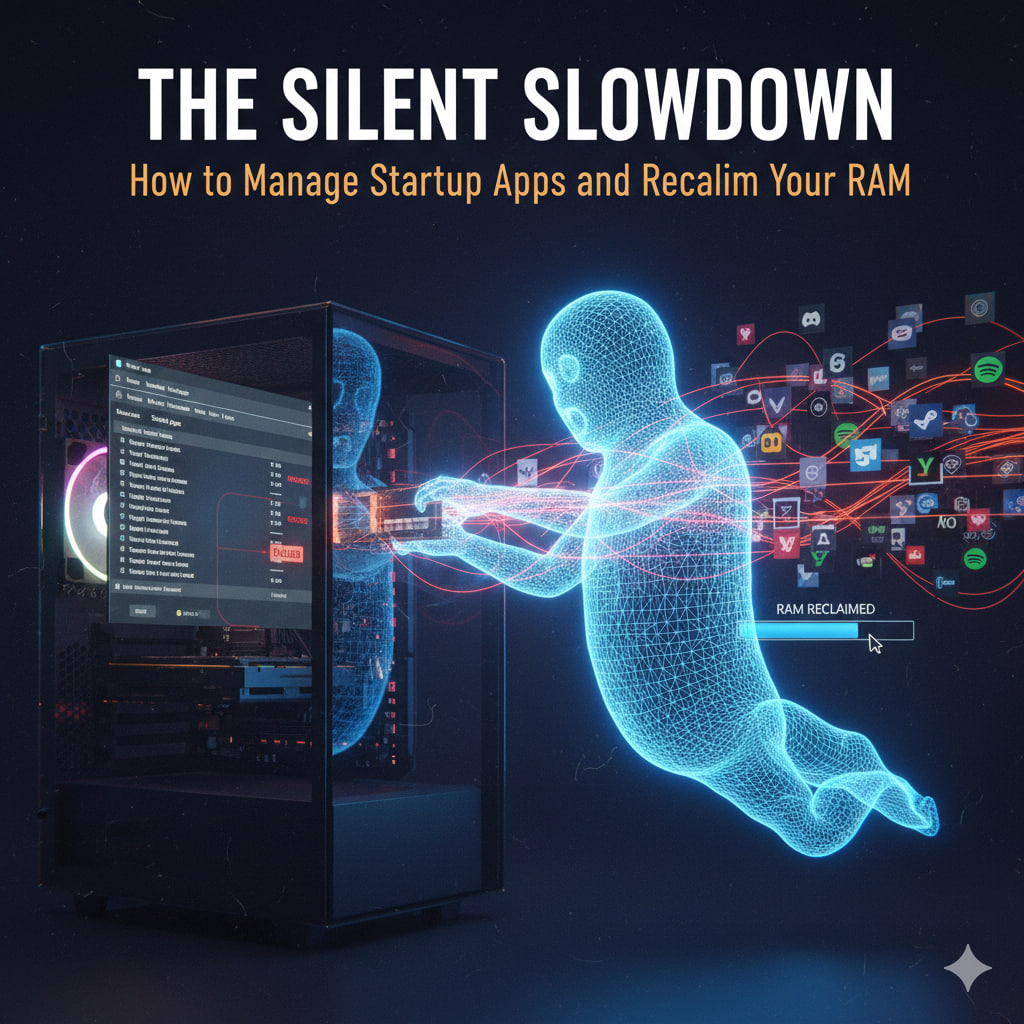
In 2026, even the most powerful machines can feel sluggish. The culprit isn’t usually a virus; it’s “Software Bloat”—a collection of apps that grant themselves permission to start the moment you log in. These “silent” background processes eat into your RAM (Random Access Memory), leaving less room for the apps you are actually trying to use.
Reclaiming your RAM is the single most effective “free” upgrade you can give your computer. Here is how to do it in 2026.
1. The 2026 “Startup Audit”
Not every app needs to be ready at a moment’s notice. You need to distinguish between Core Utilities and Resource Hogs.
- Keep Enabled: Security software (Antivirus), Cloud Sync (if you save files constantly), and hardware drivers (audio/mouse software).
- Disable: Game launchers (Steam, Epic), Communication apps (Teams, Discord, Slack), and “Update Helpers” for software you rarely use.
2. How to Reclaim Control (Windows & Mac)
The methods have evolved to be more user-friendly, but the “Pro” tools remain the most effective.
For Windows 11/12 Users:
- The Quick Way: Press
Ctrl + Shift + Escto open Task Manager. Navigate to the Startup Apps tab. Look at the “Startup Impact” column—anything labeled “High” is your primary target. Right-click and select Disable. - The Deep Clean: Open Settings > Apps > Startup. This menu provides a cleaner interface and toggle switches to manage background behavior.
- The Secret RAM Eater: Disable SysMain (formerly Superfetch). This service preloads apps into RAM that you might never use. Search for “Services,” find SysMain, right-click, select Properties, and set “Startup type” to Disabled.
For macOS Users:
- The Standard Way: Go to System Settings > General > Login Items. Under “Open at Login,” select an app and click the minus (-) button to remove it.
- The “Background” Audit: Below the login items, look at “Allow in the Background.” This is where apps like Adobe or Google Chrome hide “updaters” that run even if the app is closed. Toggle off anything non-essential.
- The Force Purge: If your Mac feels stuck, open Terminal and type
sudo purge. This flushes the inactive memory and forces the OS to reallocate RAM to your active windows.
3. The “Ghost Process” Cleanup
Some apps don’t appear in the standard startup lists.
- Browser Extensions: Each Chrome or Edge extension is its own background process. Go to
chrome://extensionsand remove anything you haven’t used in a month. - The “Zombie” Tab: In 2026, most browsers have “Memory Saver” mode. Ensure this is ON to “freeze” tabs you aren’t looking at, instantly freeing up gigabytes of RAM.
Performance Impact Cheat Sheet
| Action | RAM Reclaimed (Est.) | Impact on Speed |
| Disable High-Impact Startup Apps | 500MB – 1.5GB | ⚡⚡⚡ (Faster Boot) |
| Enable Browser Memory Saver | 1GB – 3GB | ⚡⚡⚡ (Less Lag) |
| Disable SysMain / Background Tasks | 200MB – 600MB | ⚡ (Steady Performance) |
| Clear Clipboard & Temp Files | 100MB – 300MB | ⚡ (System Stability) |
Pro Tip: Aim to keep at least 20% of your RAM free at all times. When RAM usage hits 90%+, your computer begins using your much slower hard drive as “Virtual Memory,” which is the primary cause of system freezes.
Leave a Reply