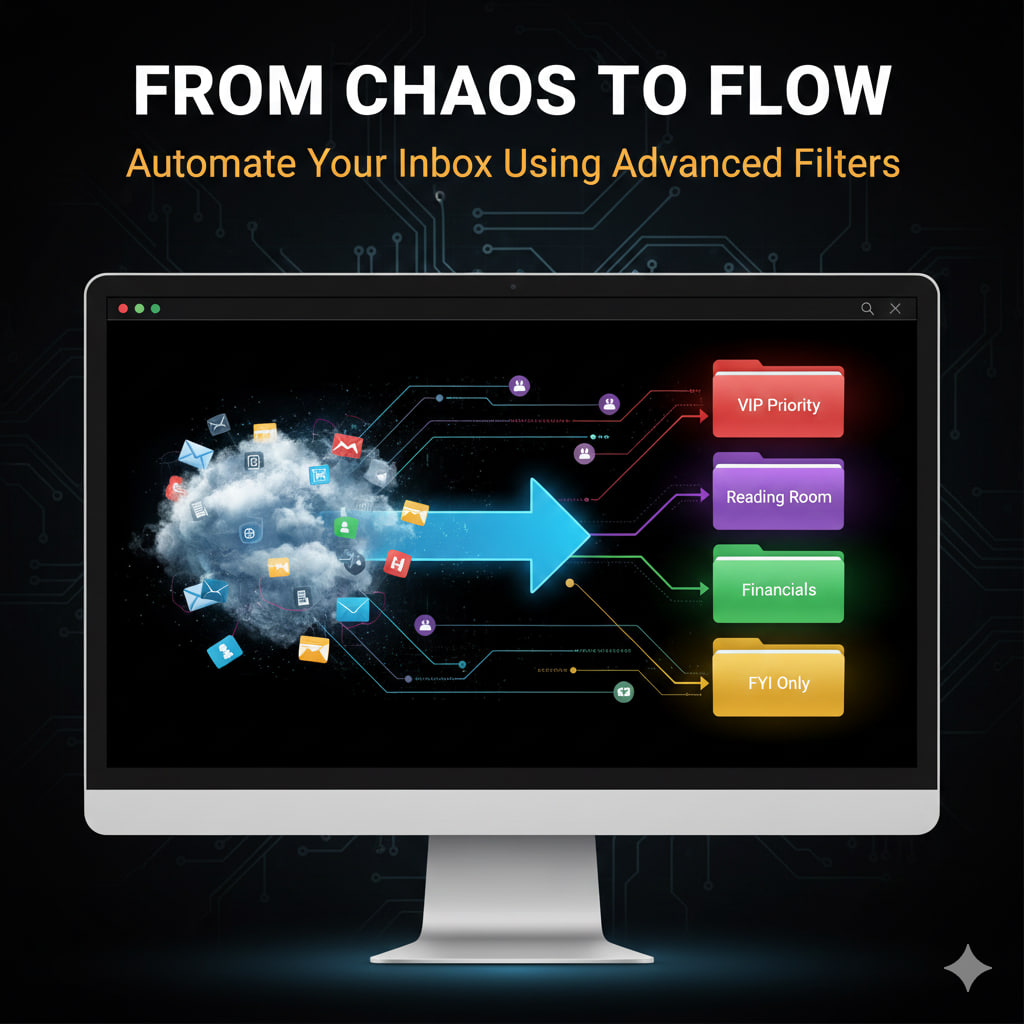
If your morning routine begins with a sense of dread as you stare at a “99+” unread badge, you aren’t managing an inbox—it’s managing you. Most users treat their inbox like a conveyor belt, manually picking off items one by one.
To achieve “Flow,” you need to turn your inbox into a smart sorting facility. By using Advanced Filters (or “Rules”), you can ensure that by the time you actually open your mail, the “noise” is gone and only the “signal” remains.
1. The “Newsstand” Strategy (Auto-Labeling)
Don’t let newsletters and industry updates clutter your primary view.
- The Filter: Create a rule for any email containing the word “Unsubscribe.”
- The Action: Skip the Inbox + Apply Label “Reading Room.”
- The Result: Your newsletters are neatly tucked away for when you choose to read them, rather than interrupting your deep work.
2. The “VIP” Priority Lane
Ensure you never miss a message from your boss, a key client, or a primary stakeholder.
- The Filter: Create a rule based on specific email addresses (e.g.,
boss@company.com). - The Action: Star/Flag + Mark as Important + (Optional) Forward to SMS.
- The Result: These emails bypass the noise and sit at the very top of your digital stack with a visual “emergency” indicator.
3. The “Receipt Vault”
Stop manually filing digital invoices. You only need these during tax season or expense reporting.
- The Filter: Create a rule for keywords like “Order Confirmation,” “Receipt,” or “Invoice.”
- The Action: Mark as Read + Apply Label “Financials” + Archive.
- The Result: You can search for them instantly when needed, but they never appear in your daily unread count.
4. The “CC” Backgrounder
If you are CC’d on a thread, you are usually being kept “in the loop,” not being asked for immediate action.
- The Filter: In the “To” field, put
-[your email]; in the “CC” field, put[your email]. - The Action: Apply Label “FYI Only.”
- The Result: You can scan these at the end of the day to stay informed without them breaking your concentration during high-productivity hours.
How to Set This Up
- Gmail: Click the “Show search options” icon in the search bar → Enter criteria → Click Create filter.
- Outlook: Go to Settings → Mail → Rules → Add new rule.
- Apple Mail: Go to Settings → Filters (on iCloud.com) or Mail → Settings → Rules (on Mac).
A Note on “Inbox Zero”: The goal isn’t to have zero emails; it’s to have zero unprocessed decisions. Automation handles the processing so you can focus on the decisions.
Leave a Reply